Security & Compliance
Manage GDPR cookie consent, legal policies, and footer links.
Menu Access
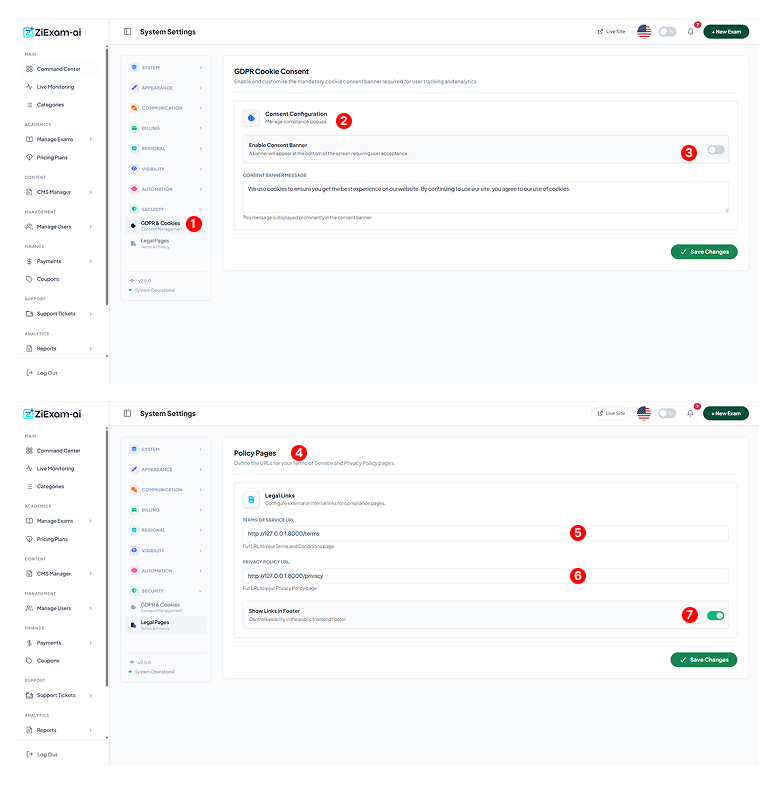
Navigate to Security > Compliance. These tools ensure your exam platform meets international data privacy regulations like GDPR and CCPA.
Consent Configuration
This panel controls the cookie popup banner that appears for first-time visitors. It blocks non-essential cookies until the user clicks "Accept".
Enable Banner
Toggle this switch ON to activate the banner. It will appear at the bottom of the screen on all public pages.
Policy Links
Define the destination URLs for your "Terms of Service" and "Privacy Policy". These links are automatically inserted into the registration form footer and the main website footer.
Terms of Service URL
Enter the full path (e.g., /terms or an external link). This is mandatory for using social login apps like Google and Facebook.
Privacy Policy URL
Enter the path to your privacy statement. This document should explain how student data (emails, exam scores) is stored and processed.
Footer Visibility
Show Links in Footer: Toggle this to automatically append these legal links to the global footer of the frontend theme.