Localization
Configure timezones, default languages, and multi-language support.
Menu Location
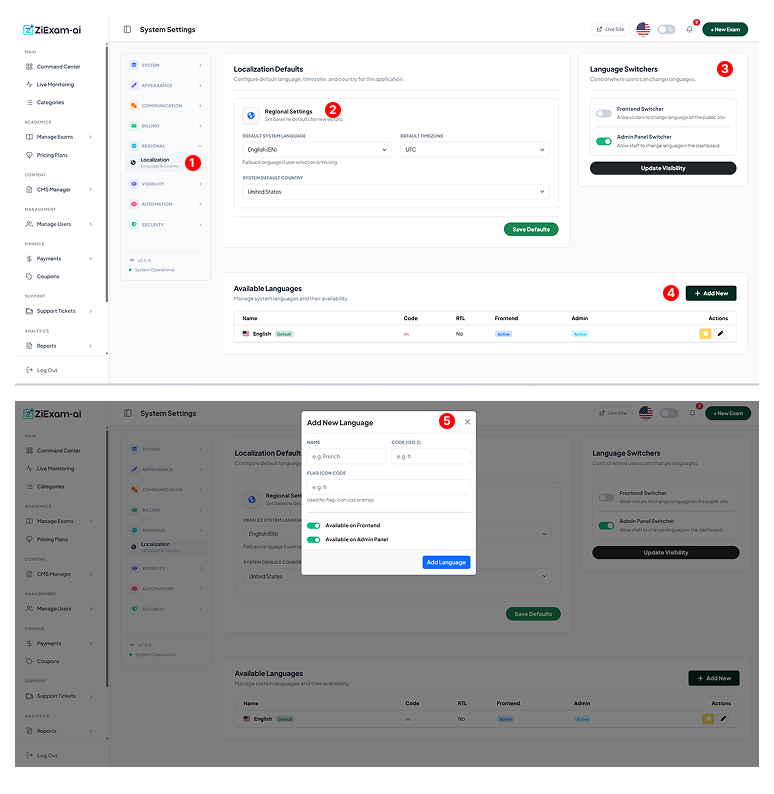
Navigate to Regional > Localization. This section controls how the application adapts to different geographies and languages.
System Defaults
System Language: The fallback language if a user's preference isn't set (e.g., English).
Default Timezone: Sets the server time for exam scheduling (e.g., UTC).
Default Country: Pre-selects the country code in phone number fields.
Language Switcher Visibility
Frontend Switcher: Allows public visitors to change the site language from the footer/header.
Admin Panel Switcher: Allows logged-in staff to change their interface language via the top navbar.
Available Languages
This table lists all installed language packs. The yellow star icon indicates the current default. You can edit translation strings or disable specific languages from appearing in the switcher.
Add New Language
Clicking "Add New" opens the modal configuration:
Name: E.g., French
Code (ISO 2): E.g., fr (Must match the folder name in /lang)
Flag Icon: Use a CSS class (e.g., flag-icon-fr) or emoji.
RTL Support
Ziexam fully supports Right-to-Left languages like Arabic and Hebrew. When adding such a language, ensure you set the "RTL" toggle to Yes in the configuration modal.