IELTS Module
Comprehensive management for Reading, Writing, Listening, and Speaking modules with automatic Band Score calculation.
1. Configuration & Creation
The IELTS module requires a two-step creation process. First, define the test settings, then configure individual content modules.
Test Identity
Set the public title of the exam (e.g., "IELTS Academic Vol 1"). This serves as the main identifier for students.
Type & Pricing
Type: Choose between "Academic" or "General Training" to adjust scoring logic.
Pricing: Set a price to monetize the test, or leave as 0 for free access.
Status & Persistence
Toggle the "Active" switch to make the exam visible to students. You must click Save Changes before you can add questions.
Content Modules
The core of the IELTS exam. This section manages the 4 skills: Listening, Reading, Writing, and Speaking. Each card shows the duration, section count, and provides a "Manage Content" button.
Creation Workflow
When creating a New Test, the Module cards are locked (grayed out). You must define the Title/Type and click "Create New Test" first. Once the test ID is generated, you can enter the Edit screen to add content.
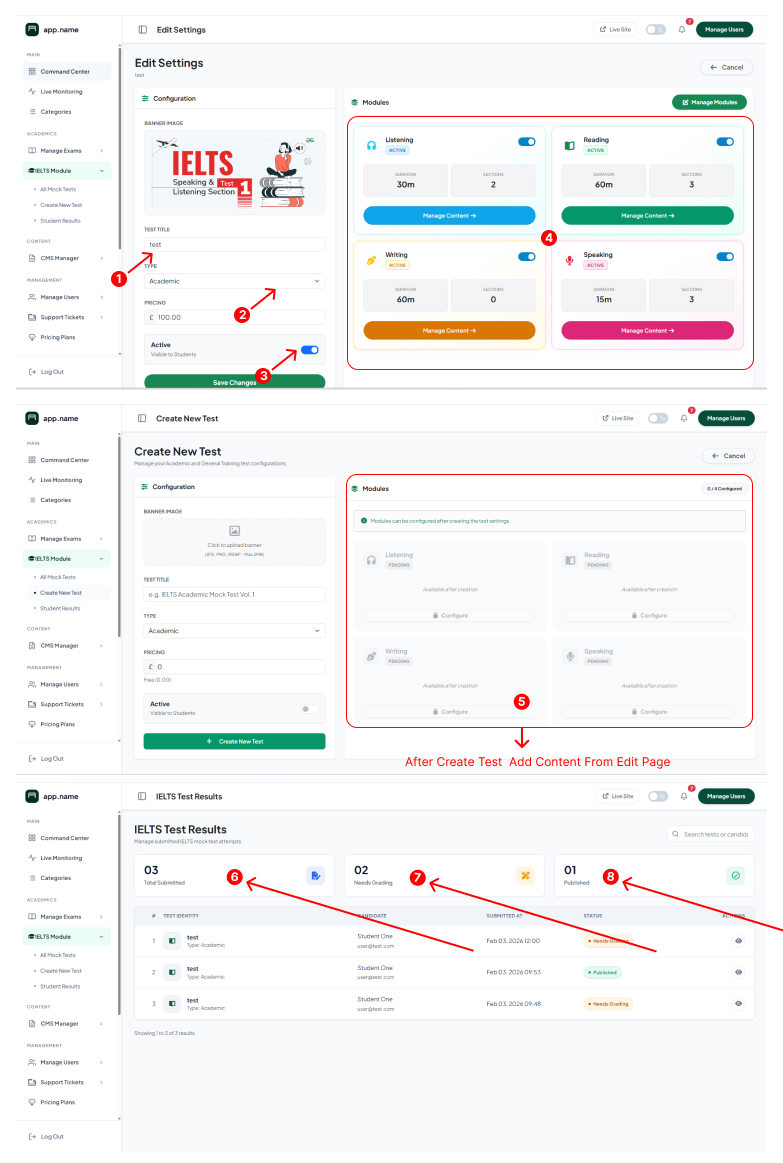
Dashboard & Status Indicators
Total Submitted
Counts total attempts by all students for this specific test ID.
Needs Grading
Crucial for IELTS: This counter shows tests where the Student has finished, but the Admin has not yet manually scored the Writing or Speaking sections.
Published
The number of results that have been fully graded (AI + Manual) and released to the student dashboard.

2. Scoring & Analysis
The results screen combines automated scoring for objective sections with manual interfaces for subjective modules.
Listening Raw Score
Displays the raw correct answers (e.g., 2/40). The system automatically grades these based on the answer key provided during setup.
Reading Raw Score
Similar to Listening, this shows the raw score (0/40). Since Reading/Listening are objective, no admin intervention is usually needed here.
Overall Band Score
The calculated average of all 4 modules rounded to the nearest half-band (0-9). If "Pending Review" is visible, manual grading is incomplete.
Module Breakdown & Recalculate
A detailed table showing the converted Band Score for each skill. Use the Recalculate Now button if you have modified answer keys or manual scores after the test was taken.
Correct Answer Review
In the detailed review view, correct student answers are highlighted in green with a checkmark.
Incorrect & Manual Scoring
Top Image (6): Shows an incorrect answer highlighted in red.
Bottom Image (6): For Writing/Speaking, the admin panel provides a manual scoring bar. Enter a band score (0-9) and click "Save Assessment" to finalize the result.