Send Notifications
Broadcast emails and SMS messages to students and instructors.
Composer Controls
Trigger Point
Access this tool via the sidebar menu or by clicking the "Send Notification" action button on any user's profile. When triggered from a profile, that user is automatically added to the audience list.
Audience: All Users
Select this mode to broadcast to the entire database (students, instructors, and admins). Ideal for system maintenance alerts. These jobs are queued in the background to prevent server timeouts.
Audience: Specific Users
Select this mode to target specific individuals. A search bar will appear, allowing you to find users by name or email and add them to the recipient list manually.
Channel Selection
Choose your delivery method:
Email: Uses the configured SMTP server.
SMS: Uses the active SMS Gateway (e.g., Twilio).
Note: You can enable both simultaneously.
Message Composer
Define the "Subject" (for emails) and the "Message Body". The editor supports basic HTML, allowing you to bold text or insert links. The system automatically applies your brand's header and footer.
Navigation Control
The "Back to User List" button allows you to cancel the operation and return to the main management screen without sending the message.
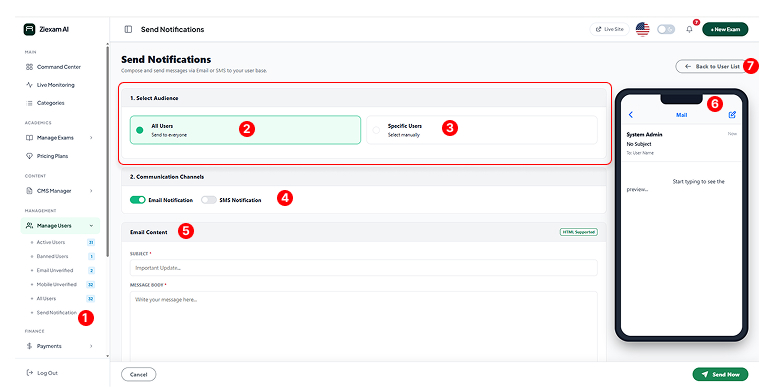
Live Mobile Preview
This unique feature simulates the recipient's experience in real-time. As you type, the smartphone mockup instantly reflects your changes.
-
SMS Segment Calculator: When sending SMS, it automatically tracks character count (e.g., 50/160) and calculates how many billable segments will be used.
-
Context Switching: The preview automatically toggles between an "Email View" and an "SMS Bubble" depending on which channel you have enabled.
-
Error Prevention: Visually verifies that your links and line breaks are formatted correctly before you spend money on credits.