User Management
Centralized control for user registration, filtering, and quick editing.
Interface Overview
Module Access
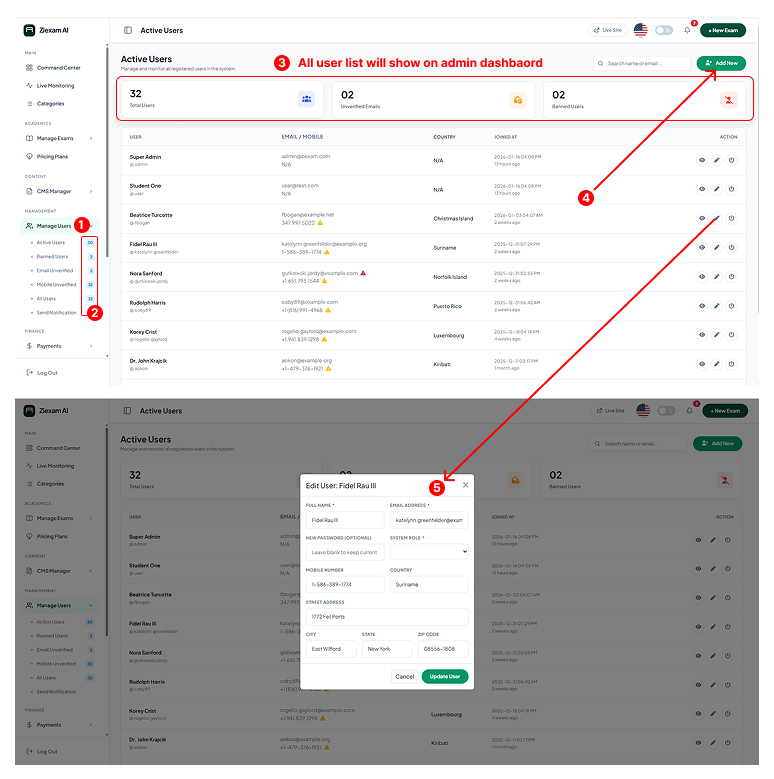
Locate the "Manage Users" tab in the left sidebar. This parent menu item expands to reveal detailed status filters and notification options.
Smart Filters
Use the sub-menu to instantly segment your user base. The blue badges display real-time counts for:
- Active Users: Standard verified students.
- Banned Users: Accounts with revoked access.
- Unverified: Users pending Email or Mobile verification.
Statistical Overview
The top dashboard cards provide a high-level health check. Monitor the "Total Users" growth versus the number of "Unverified Emails" to decide if you need to purge inactive accounts.
Manual Registration
Click the "Add New" button to manually onboard a user. This is essential for creating Staff/Admin accounts or registering students who cannot access the frontend signup page.
Quick Edit Modal
Clicking the pencil icon triggers this popup. It allows for rapid updates without leaving the page:
- Full Name & Email: Correct typos in registration data.
- Password Reset: Enter a new password to override the current one (leave blank to keep unchanged).
- System Role: Promote a user to Admin or demote to Student.