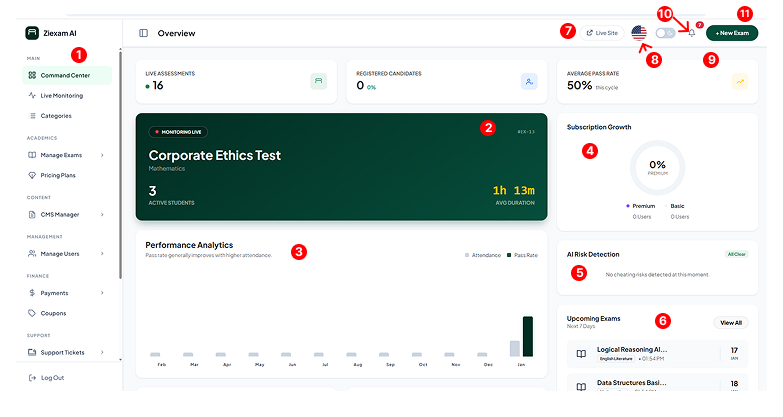
Admin Dashboard
Overview of the administrator command center.
Interface Breakdown
Command Center
The primary navigation sidebar providing centralized access to all system modules, including Exam Management, User Roles, CMS settings, and Payment gateways. It features a responsive design that collapses on mobile devices to optimize screen real estate.
Live Exam Monitor
A high-priority real-time widget that updates every second via WebSockets. It displays the currently active exam, the subject being tested, and the total count of students currently online. The "Monitoring Live" badge pulses to indicate a stable connection.
Performance Analytics
An interactive bar graph providing a 6-month historical view of academic performance. It compares student attendance rates against average pass rates, helping administrators identify seasonal trends or difficult curriculum periods.
Subscription Growth
Essential for SaaS platforms, this donut chart visualizes the ratio of Premium (Paid) users versus Basic (Free) users. It helps in tracking conversion rates and understanding the platform's revenue health at a quick glance.
AI Risk Detection
The central security hub. This panel alerts admins if the AI detects anomalies across active exams, such as multiple faces, no face detected, or suspicious tab switching. An "All Clear" status means proctoring is active with no threats.
Upcoming Exams
A rolling schedule of assessments planned for the next 7 days. This allows administrators to verify that exams are scheduled correctly and prepare server resources for anticipated high-traffic periods.
Live Site Shortcut
A utility button that instantly opens the student-facing frontend in a new browser tab. This is crucial for admins to quickly preview how new settings, banners, or exams appear to the end-users.
Language Localization
A global dropdown to switch the interface language. The system supports LTR (English, Spanish) and RTL (Arabic, Hebrew) layouts, persisting the preference across sessions for a personalized admin experience.
Dark/Light Theme
Toggles the entire interface between a standard light mode and a high-contrast dark mode. Dark mode is specifically designed to reduce eye strain during long monitoring sessions in low-light environments.
Notifications Center
The alerts hub displaying real-time updates on new student registrations, received support tickets, and successful payments. The red counter badge ensures you never miss critical system events.
Quick Create Exam
A primary call-to-action button that bypasses navigation menus to immediately launch the Exam Creation Wizard. Use this for setting up unplanned pop-quizzes or urgent assessments in seconds.